Wednesday, 7 March 2018

Configuring Mobile Devices

To connect an Android phone to a wireless network:

1. Press the Home button, and then press the Apps button. Navigate to Settings.


     2. Under “Wireless and Networks”, make sure "Wi-Fi" is turned on, then press Wi-Fi.


    3. select Scan & select the network.


    4. Enter the correct Wi-Fi network password, and press Connect. & successfully connected


     IN IOS 


    Iphone 5s
      

    Tap on setting


    In setting option click on wifi

     Enter wifi settings

      Turn on wifi
      

     You will be able to see the available wifi networks in the screen


    Select any network which you want to connect


    Enter the password and click on join.


    Sync your photos manually with iTunes


    1. Make sure that you have the latest version of iTune.


    2. Open iTunes on your computer.


    3. Use the included USB cable to connect your iPhone, iPad, or iPod touch to your computer.


    4. Click on the device icon in iTune. 


    5. In the sidebar on the left side of the iTunes window, click Photos.


    6. Choose the app or folder that you want to sync from.


    7. Choose to sync all photos and albums or selected albums. 


    8. Select "Include videos" to sync the videos from your app or folder too.


    9. Click Apply.


    Sync Windows Phone with PC

    1. Set computer to accept remote connections.


    2. Select don't ask again for this certificate

    Monday, 5 March 2018

    USING ENCRYPTION TOOLS FOR HDD

    HD Encryption Using PGP


    Pretty Good Privacy or PGP

    Pretty Good Privacy is an encryption program that provides cryptographic privacy and authentication for data communication.

    A data encryption and decryption program that provides cryptographic privacy and authentication for data communication. 


    • Steps of  Encrypting HDD using PGP

    1. Double-click the Symantec Encryption Desktop


    2. click the PGP Disk tab


    3. Click Encrypt Disk or Partition


    4. Click C: Disk


    5. Select Power Failure Safety


    6. Click New Passphrase User.


    7. Select Create New Passphrase.


    8. Click Next.


    9. Click Next.


    If the Windows password does not match the currently logged in user, the following message will appear:


    10. Click Next.


    11. choose “Create New Passphrase”, and click Next.


    12. CProceed with passphrase authentication only”, and click Next:lick Encrypt.


    13. If the user is a Non-SSO user, “Passphrase User” will be displayed when hovering over the user icon:


    14.  Click Yes to start the encryption process:


    Thursday, 1 March 2018

    Desktop and Laptop Security Settings (Part1)

    Windows Firewall

    ➡ Windows firewall is a Microsoft Windows Application that filters data coming in to your Device ➡ from the Internet.
    ➡ Block potentially harmful packages.
    ➡ Windows firewall can also secure the system by blocking all unsolicited attempts to connect to ➡       your computer.
    ➡ Windows Firewall allow you to customize setting for both private and public neeetwork
    ➡ You can also turn the software on or off  (On by default).


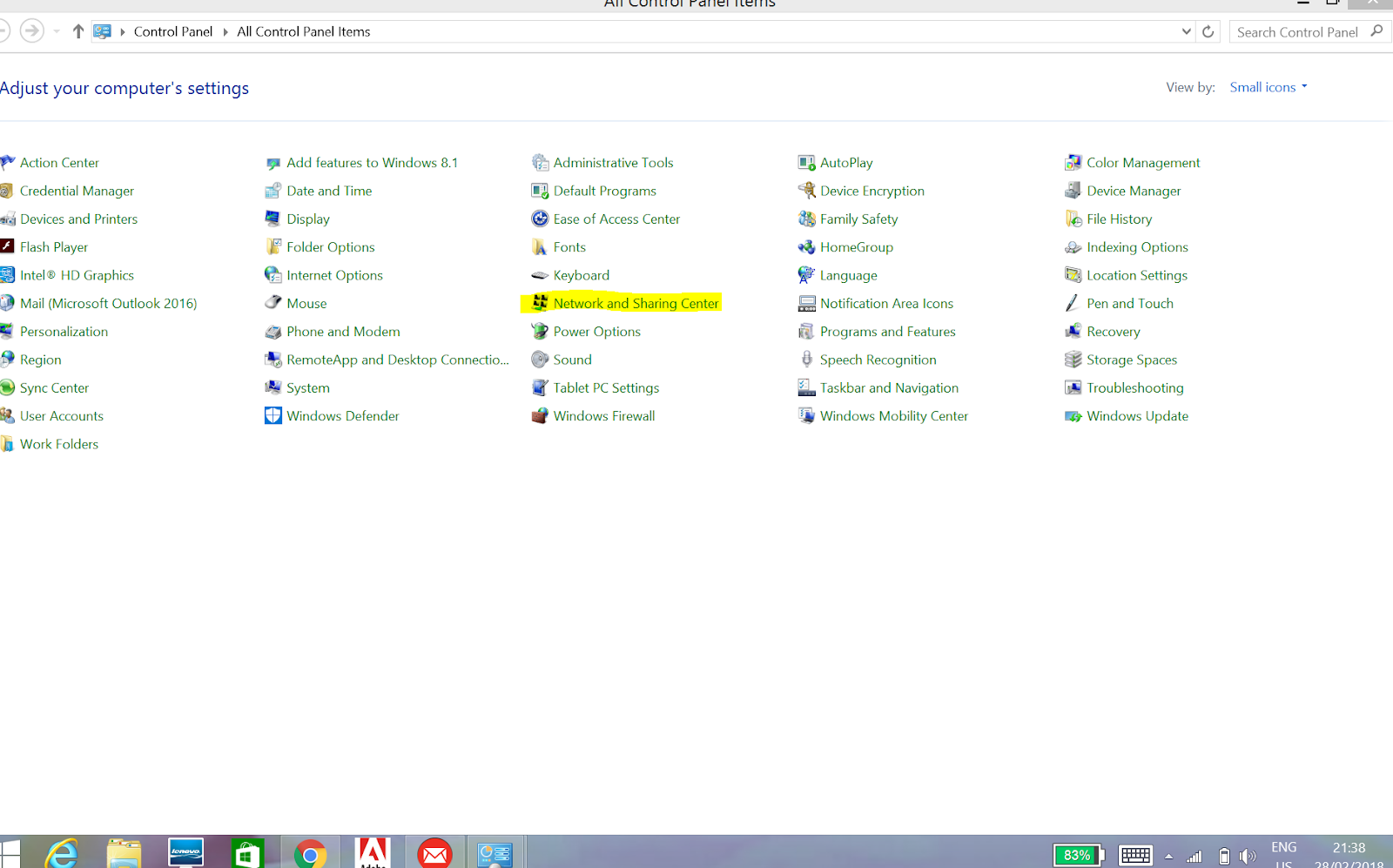
    1. Go to Control Panel.


    2. Click Network & Sharing Center.


    3. Click Windows Firewall.


    4. Turn Windows Firewall on or off.


    • Importance of Password 
    Password 

    ➡ Is one of the secure ways of protecting your system.
    ➡ Is use to help identify distinguish user and their access on a computer or network.
    ➡ One of the most common ways that hackers break into computer is by guessing password.
    ➡ Password should be strong.
    ➡ Use a mix of different types of characters to make the password harder to crack.


    Password Policy 

    ➡ If you don't want users to have to change passwords.

    ➡ Set Passwords never expire to On.

    ➡ If you want user passwords to expire, in the first box type how             often passwords should expire.

    ➡ When the user's password expires, they'll get a notification that appears in the lower right corner of their screen.


    COMPONENTS OF A PASSWORD POLICY


    Tuesday, 27 February 2018

    Printer Troubleshooting


    DATE   15/02/2018
    BLOG PREVIOUS MARK 
    GRPWORK+PRESENT+TPS+MINDMAP
            3                   8         1           1
    TOTAL: 10/15

    PRACTICAL: 27/02/2018
    Blog  +  Simulation
      8.5               -


    Junk Character Printer Issue

    The printer dose not have anything to do with the problem.
    It just prints what its told to.
    Since it receives a print job in a language it doesn't understand, it spits out garbage.
    The problem is somewhere else.

    Switching Issue

    If you are using an Interface-switching device, remove it.
    Connect your computer directly to your printer, and then try again.


    Port Issue 

    Maybe there is a damaged printer port or you are using a parallel port.
    You either replace it or use the correct port which you can check from the Device Manager.
    Make sure that the printer is not connected to the same port that is also the printer to the port only.


    Driver Issue

    Check if the correct printer driver is chosen.
    Try to reinstall or update the driver.


    Cable Issue

    Remove the cable from the printer and then reinsert it or maybe there is a loose or damaged cable, replace the cable.

    Mack sure that the printer and then the printer cable is not to long .

    We recommend that you use a USB cable that is no longer than 2 meters ( 6.5 feet ).


    Name of student : Ashish Yadav
    Faculty name: Sayali Mam
    Roll no: JK-ENR-SW-1759 
    Date: 27/02/2018

    Robotics?

    what is robotics? Robotics is a branch of engineering that involves the conception, design, manufacture, and operation of  robots . This ...